Settings
Pong's Settings keep to the switches themselves. This page says what each one does.
Opening Settings
On the Mac, right-click the Bar or card and choose Settings, or press ⌘, while a Pong panel is in front. On the iPhone, tap the settings button at the top of the Queue.
Card
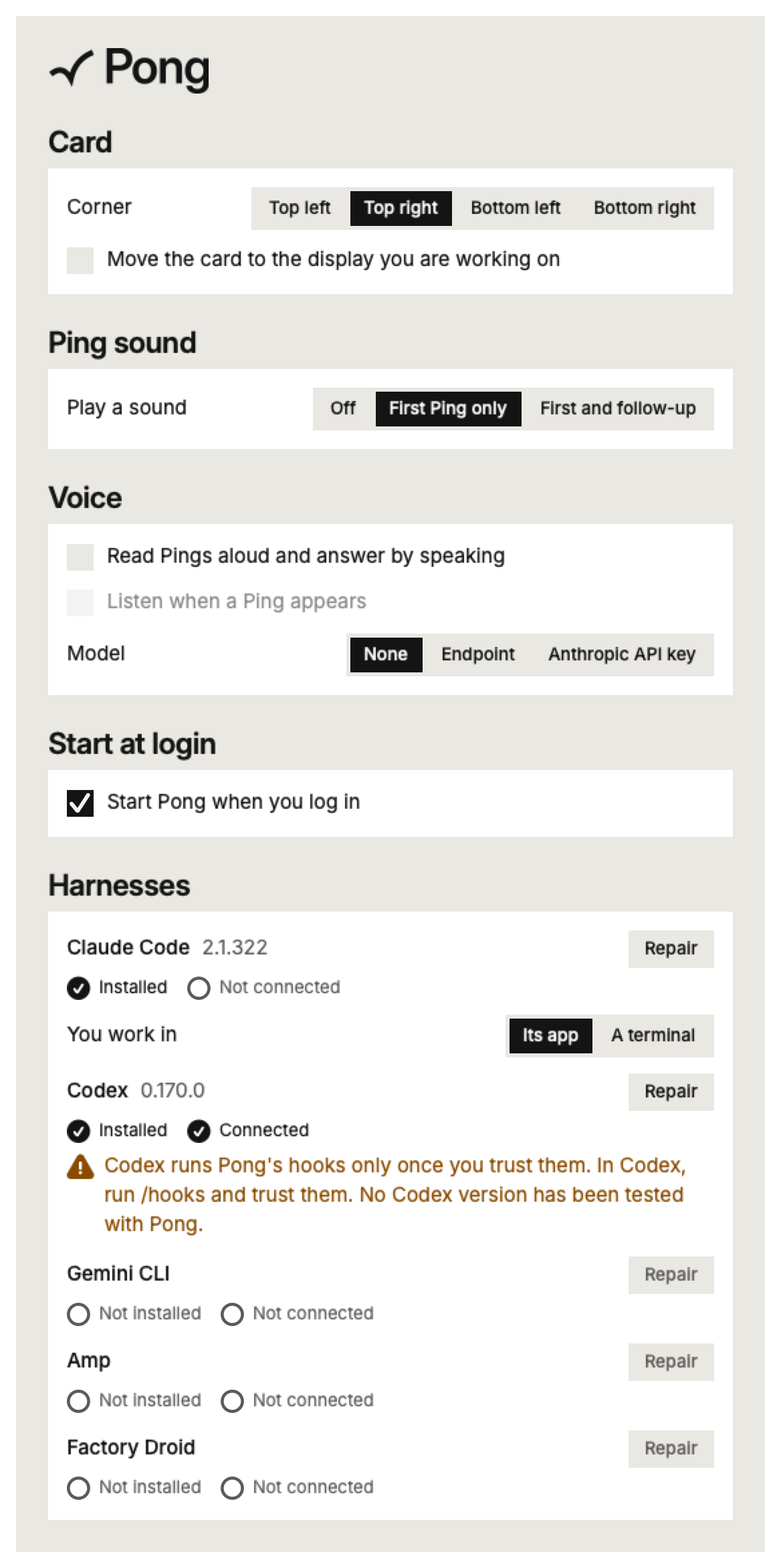
- Corner is where the card and Bar sit on your screen.
- Move the card to the display you are working on makes Pong follow you between displays. Off, it stays on your main display.
Ping sound
Off plays nothing. First Ping only plays a sound for the first Ping of a Thread. First and follow-up also plays a softer sound for a follow-up, which is a Ping from a Session within five minutes of your last answer to it. Notes never make a sound. The phone has the same setting.
Voice
On the Mac, Pong can read Pings aloud and take your answer by voice.
- Read Pings aloud and answer by speaking turns voice on.
- Listen when a Ping appears starts listening as soon as a Ping is read. Otherwise, press the microphone on the card.
Speech is turned into text on your Mac, and no audio ever leaves it. To understand more than a plain choice, Pong can pass your words, along with the Ping's question and answers, to a Model:
- None: say a number, “recommended”, “yes” or “no”.
- Hosted: Pong's own model, with Pong Cloud. It keeps nothing.
- Endpoint: any OpenAI-compatible server, such as a model running on your own computer. Give its address and the model's name.
- Anthropic API key: your own key. It's kept in the macOS Keychain, never in Pong's settings or on Pong's servers.
Test sends a sample Ping to the model and tells you what it understood.
Start at login
Pong starts when you log in, so it's there when your agents need you. If macOS hasn't allowed it, open System Settings, then General, then Login Items, and switch Pong on.
Devices
Your Devices are the computers and phones in your set. This section shows how they're connected:
- Connected on Local: they talk straight to each other over your network, and nothing passes through Pong's servers.
- Connected through Pong Cloud: they reach each other from any network, locked so Pong's server can't read what they send. Sign in on one Device and the others follow.
Each Device says whether it's reachable. Revoke takes a Device out of your set at once; it can't answer or start anything until it's paired again. To add a computer, run pong devices pair on it. When both show the same code, approve it here and run pong devices confirm there.
Harnesses
A Harness is the tool that runs your agent, such as Claude Code or Codex. For each one, Pong shows whether it's Installed and Connected to Pong. If Pings stop arriving from one, press Repair to set it up again.
You work in says where a Session you start from Pong should open. Its app starts it without a terminal window and moves it into the Harness's app after its first turn. A terminal opens it in a terminal window.
Projects
Each project has a menu, opened from the gear beside it in the start panel, or from Settings on the phone. There you set its name, colour and logo. Take Sessions started on your other Devices lets this computer run Sessions in that project when you start them from your phone or another computer.