Pong on your iPhone
The phone shows the same Queue as your Mac. Answer a Ping there and it's answered everywhere.
Pairing your phone
Open Pong on your phone and choose how to connect. Pair with a computer finds your Mac on the same Wi-Fi. Sign in to Pong Cloud uses your email or phone number and a code; there's no password.
Either way, a computer you already use has to let the phone in. It shows the same six-digit code as the phone. If they match, say so on the phone and approve it on the computer. If they differ, do neither.
Local or Pong Cloud
On Local, which is free, your phone talks straight to your computers over your own network. Nothing passes through Pong's servers. The catch is that the phone only hears about new Pings while the app is open and on that network.
Pong Cloud lets your Devices reach each other from anywhere, and sends notifications to your phone even when the app is closed. Your Pings are locked on your Devices before they leave, so Pong's server carries them without being able to read them. See pricing.
Answering on the phone
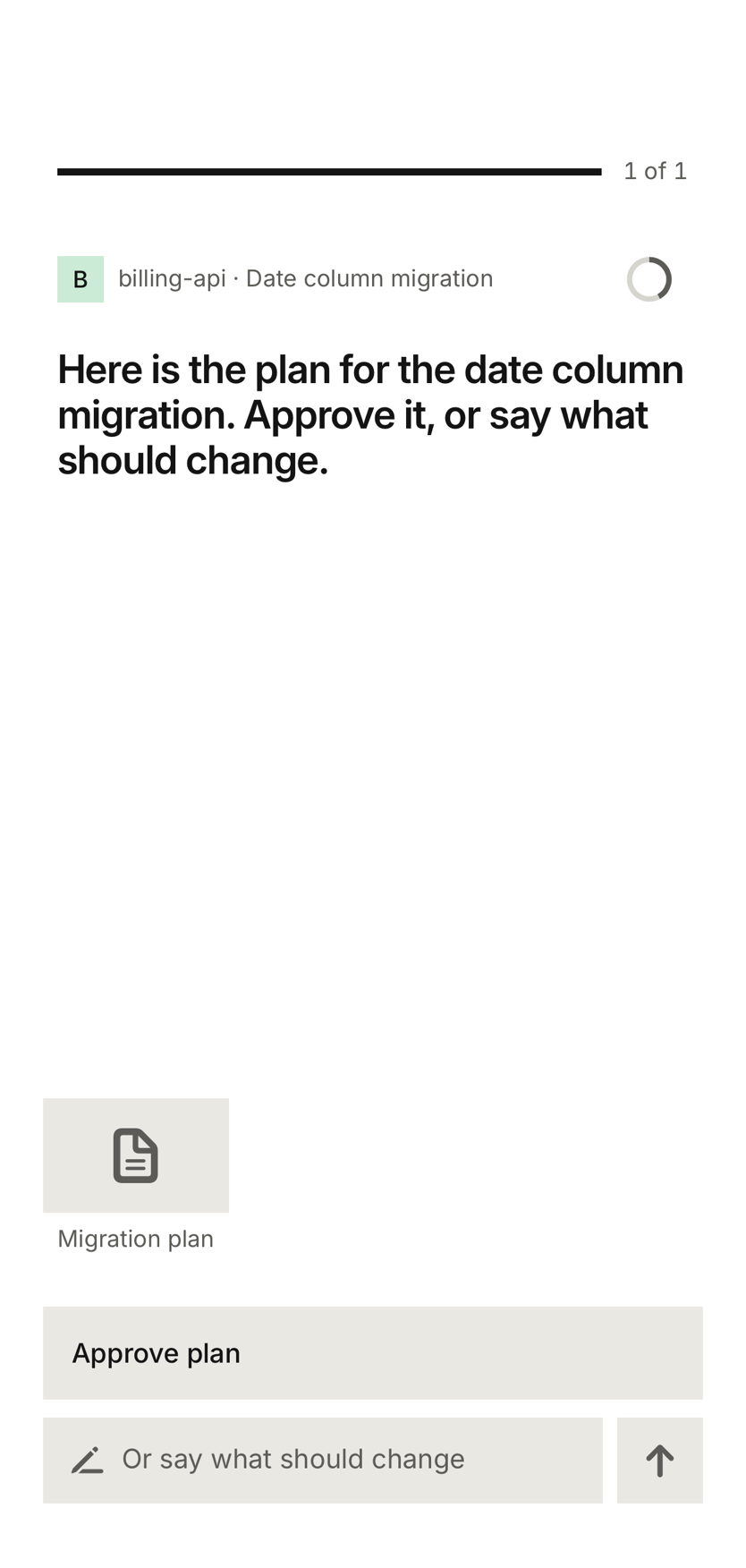
The question sits at the top and the answers at the bottom, where your thumb is. Tap an answer to send it, or type your own. Swipe left for the next Ping and right for the previous one.
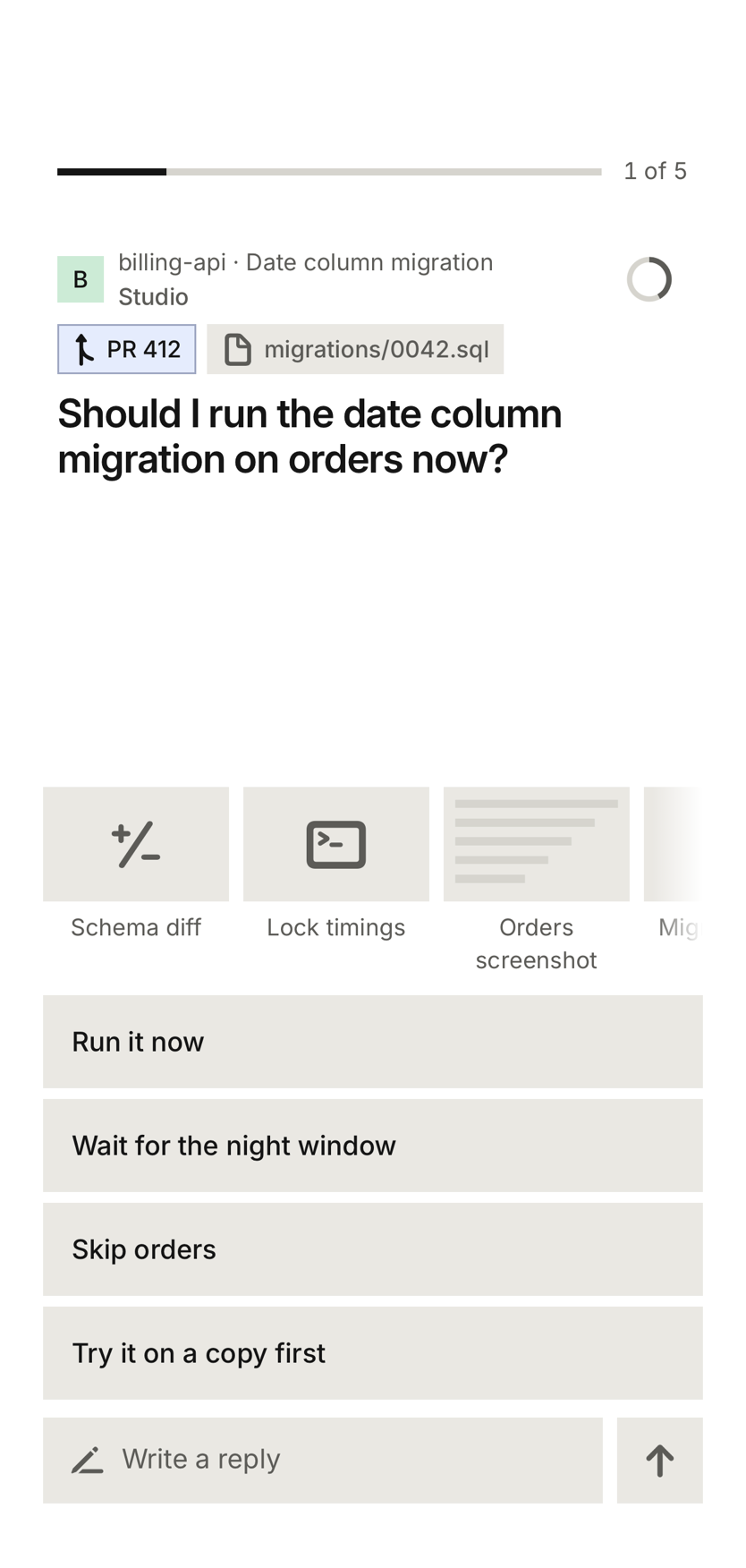
Tap an attachment to open it. Some live on the computer that made them, so they open once that computer is on and reachable.
Threads and new Sessions
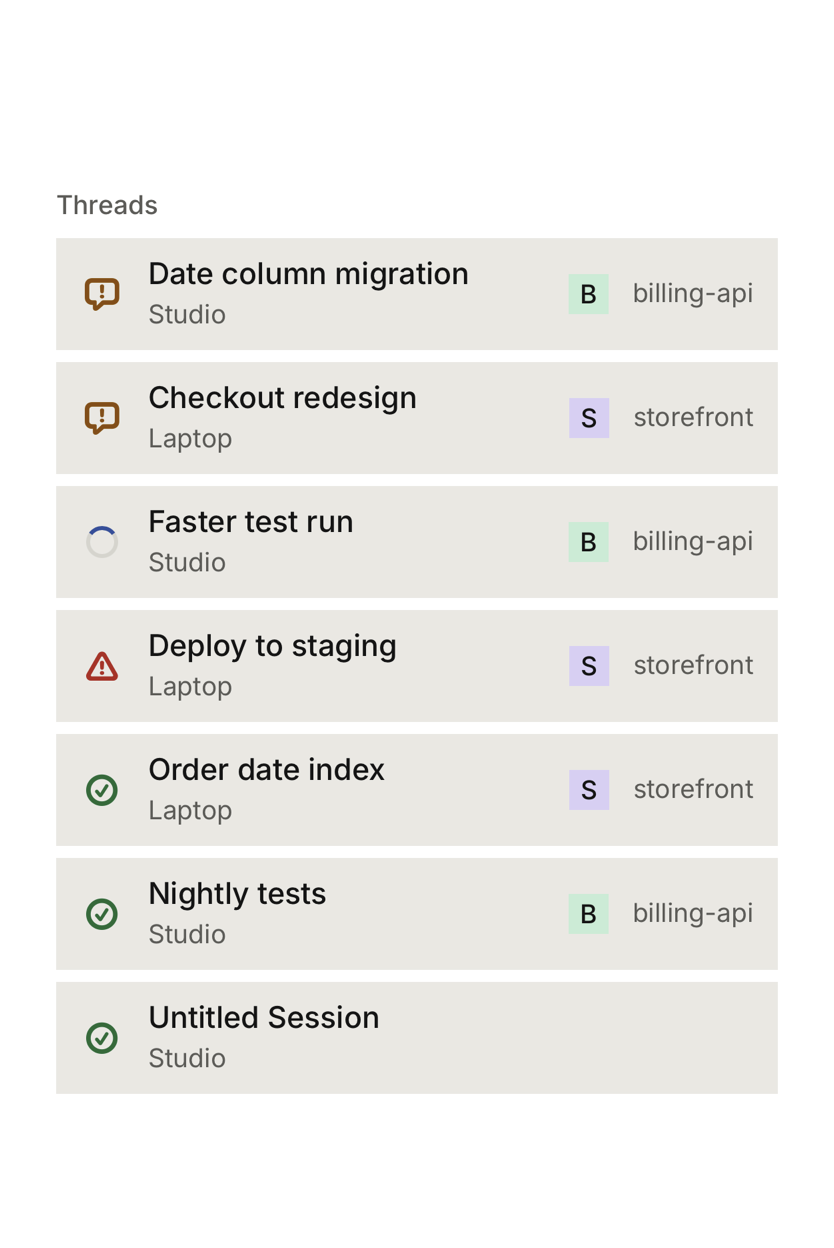
The Threads button lists your Sessions, the same as on the Mac, with Stop and follow-ups. The start button opens a sheet for a new Session: pick a project, say what to do, and choose which computer runs it.
Removing a phone
In the phone's Settings, Remove this phone from your set stops your computers sending Pings to it and deletes its keys. To use it again, pair it again. You can also remove a lost phone from your Mac's Settings with Revoke.