The card and the Bar
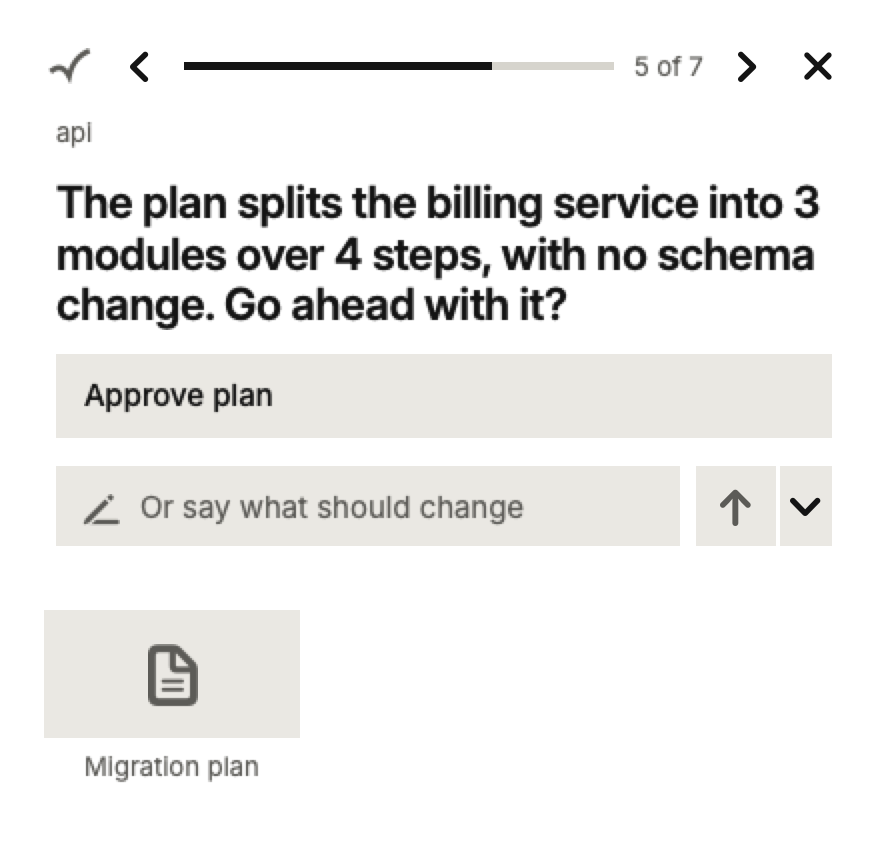
On the Mac, Pong lives in one corner of your screen. There's no Dock icon and no menu bar item, just the card when a Ping waits and the Bar when none does.
The card
When a Ping arrives, the card appears in the corner you chose in Settings, on top of your other windows. Answer it and it moves to the next Ping, or turns back into the Bar when the Queue is empty.
Not now? Click the cross to hide the card. The Ping keeps waiting, and the Bar counts it.
The Bar
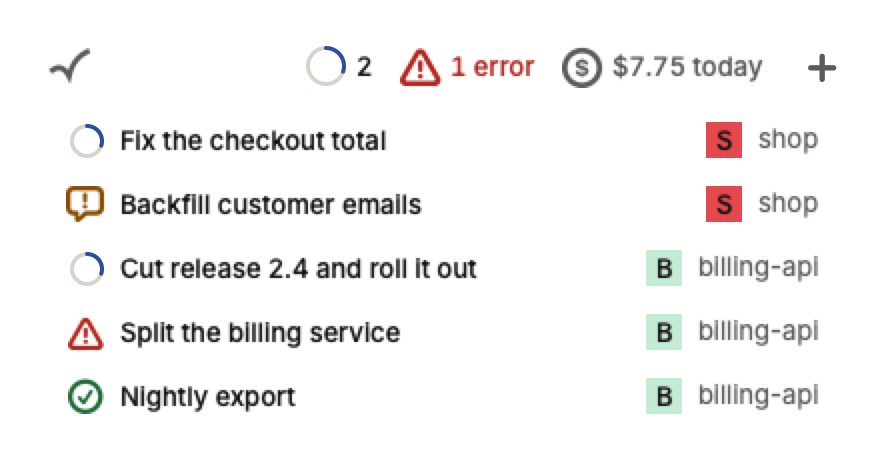
The Bar is the small strip that sits where the card was. It shows how many Sessions are working, how many stopped with an error, and what today's Sessions have cost so far, if your agent tool reports it.

Rest the pointer on it and it opens into your list of Threads. Its New Session button opens the start panel, where you pick a project and say what you want done. Right-click it for Settings and Quit.
What opens beside them
A Thread, Settings or an attachment you open sits beside the Bar or card, in one row, newest nearest. When another Device asks to join, its code and Approve button open there too, without you having to look for them.
Click opens a thing in place of what's there. Hold Command, Control or Shift as you click to open it alongside instead.
Moving things around
Drag the card or the Bar by its top edge to move it. Double-click the same spot to put it back in its corner. Anything open beside it moves with it, and you can pull one off to stand on its own.
With more than one display, Pong can follow you to the display you're working on. Turn that on in Settings.