Quickstart
Your agent can install Pong for you. Copy one prompt, paste it in, and answer the test Ping it sends.
Set up your Mac
You need a Mac with Claude Code or Codex on it.
- Copy the setup prompt.
- Open Claude Code or Codex on your Mac and paste the prompt in, as if you were asking it to do any other job.
- The agent downloads Pong, installs it and connects it to every agent tool it finds. It may ask you to OK a step or two along the way.
Answer your first Ping
At the end of setup, the agent sends a test Ping. A card appears in the top corner of your screen. Pick an answer and press Send.
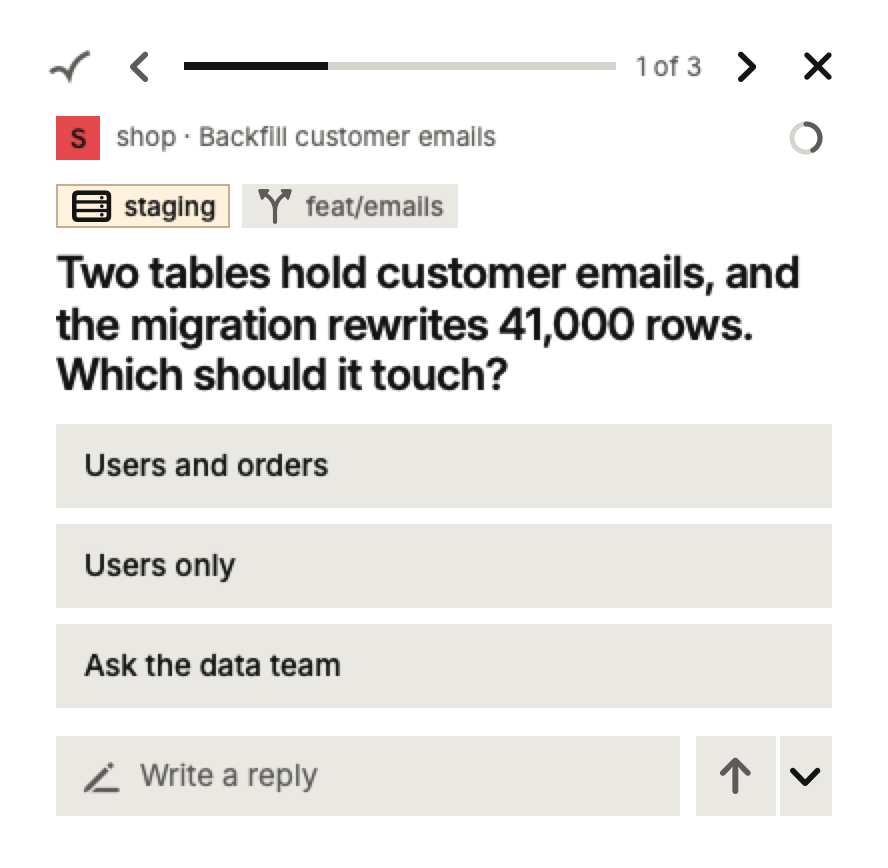
The agent tells you it got your answer. That's it. From now on, whenever an agent needs you, the card shows up. When nothing is waiting, the card shrinks to a thin strip called the Bar.
Add your other computers
Paste the same prompt into an agent on each computer your agents run on. Their Pings all join the same Queue.
On another Mac that's all there is to it. A Linux computer has no card of its own, so it pairs with a Mac or iPhone that shows its Pings. Run pong devices pair on it. When the same six-digit code shows up on both, approve it on your Mac and run pong devices confirm on the Linux computer.
Add your iPhone
- Get Pong for iPhone.
- With your phone on the same Wi-Fi as your Mac, open Pong and tap Pair with a computer.
- Your Mac shows a code beside the Bar. If it matches the one on your phone, click Approve.
Your phone now shows the same Pings as your Mac. For free, it gets them while the app is open on the same network. To get notifications anywhere, sign in to Pong Cloud instead; see Pong on your iPhone.